
How to Make an AI Rap Video With Two Photos (2026)
Make an AI rap video on Hotel lobby ai: upload two photos, pick a stage, set length, and download an MP4—with screenshots of every cast step.
Oct 1, 2026
An AI rap video is a short clip where two people trade verses on camera without you filming a set. You supply portraits; the generator builds lip sync, motion, and sound around them. This walkthrough follows the cast panel on hotel lobby ai, with screenshots from our studio, then covers credits, wait time, and fixes when a render misbehaves.
You need two clear faces (or one wide photo of a pair), a phone or laptop, and about three minutes of patience while the file renders. No beat upload, no lyric prompt on the orange booth path—the reference performance already defines the track.
Step 1: Open the cast panel and add photos
Scroll to the cast section on the homepage. Step 1 asks for one photo per performer. Tap each slot to upload from your camera roll or desktop. When both slots are filled, the thumbnails stay visible until you clear them with the × control. The same cast flow powers every hotel lobby ai render, whether you post to TikTok or send a file to a client.

Shooting tips that save retries: face the camera, keep eyes and mouth unobstructed, and use even light. One subject per file in two-photo mode. Swimwear or heavy filters sometimes trip safety checks—everyday clothes and a plain background work best.
Step 2: Pick the stage
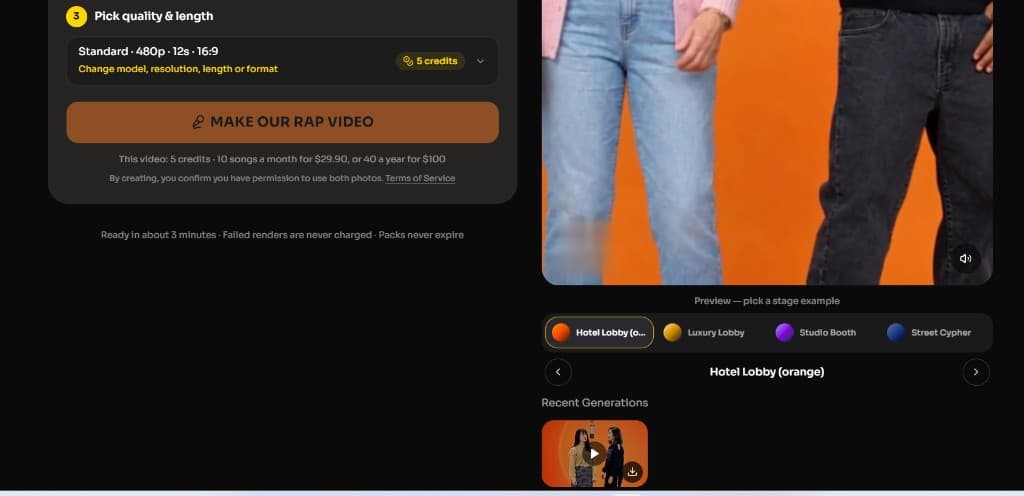
Step 2 lists four rap stages. Hotel Lobby (orange) matches the viral COLORS booth and uses the reference motion clip. Luxury Lobby, Studio Booth, and Street Cypher rebuild the scene from your photos and generated audio instead of the orange reference video. Each stage icon on hotel lobby ai maps to a different prompt and credit profile, so read the helper line before you spend credits.

The helper line under the stage row explains whether that pick uses the COLORS reference or a written scene. If you are chasing the TikTok trend, stay on orange. If you want a marble lobby or neon booth, pick one of the other three.
Step 3: Choose quality and length
Step 3 opens a compact summary—model tier, resolution, seconds, and aspect ratio. Defaults target a vertical 12-second clip at 480p, which fits Reels, TikTok, and Shorts. Expand the row to change Seedance model, 480p versus 720p output, 5–30 second lengths, or aspect ratios from 9:16 through 16:9.

Credits update live as you change settings. Read the number beside Make our rap video before you confirm—hotel lobby ai shows the exact charge, and failed renders are refunded.
Step 4: Rap video or video effects
The cast panel has two modes at the top. Rap video follows the stage you picked in step 2. Effects swaps step 2 for a grid of cinematic templates—hug, money rain, red carpet, and similar—while the right preview still loops example stage clips so you can see framing before you spend credits.
Unlike some duo studios, hotel lobby ai does not ask for a custom rap topic on the orange path. The reference track and timing are fixed. Custom lyrics matter only when you choose a prompt-only stage (luxury, studio, street) where the model writes fresh vocals around your scene.
Step 5: Make the video
Tap Make our rap video (or Make the effect in Effects mode). If you are signed out, Google sign-in appears first. With zero credits, checkout opens; once payment finishes, the upload resumes automatically on hotel lobby ai.
Stay on the tab if you can—the status line mentions photo upload, then clears when the job enters the queue. You can leave and return; recent jobs still appear in the list below the preview.
Step 6: Watch, then download
Most clips finish in about three minutes. When the task turns ready, open it from Recent Generations or the popup player. Download the MP4 for posting; the file includes audio on stages where generation enables it. That queue lives on the same hotel lobby ai account you used at checkout, so signing in on another device still shows pending jobs.
How much does a clip cost on hotel lobby ai?
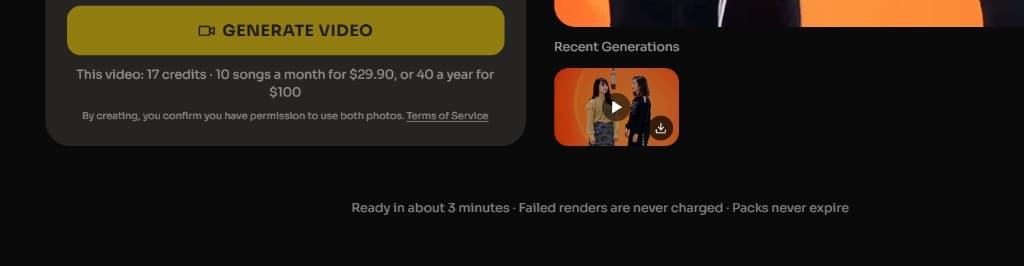
Everything runs on credits. A Standard 12-second render at 480p commonly lands near five credits; Fast, Pro, and Ultra models cost more, and 720p tiers scale with the pricing table on the pricing page. Packs and subscriptions lower the per-clip price when you batch posts for clients or a channel.
The cast button prints the exact debit before you commit. Compare that number when you toggle length or resolution—longer 2.5 model cuts spend more, but a failed queue job should never keep those credits.
Troubleshooting
Safety filter blocked the photos. Swap to clearer portraits with visible faces and neutral outfits. Nothing is charged when moderation stops an upload.
We could not find a clear face. Move closer, reduce blur, and avoid sunglasses or masks. In one-photo mode, both faces must read cleanly at half width.
The total duration cannot exceed 15 seconds. That message comes from the video API when the reference clip or settings exceed Seedance limits. Pick 15 seconds or less on Standard models for orange, or switch to Seedance 2.5 for longer outputs.
Faces drift or look soft. Retake with matching light on both subjects, confirm left/right slots, and try 720p after you like the pairing at 480p.
Silent MP4. Orange booth clips should include performance audio when generation succeeds. If a file is mute, retry once; persistent silence may mean the reference upload lacked an audio track.
Ready to try it? Open hotel lobby ai, add two photos, pick orange or another stage, and generate. For the history behind the booth, read our Hotel Lobby trend guide and the Hotel Lobby song explainer.